Tips, tricks & FAQs
Tips, tricks & FAQs
8 min
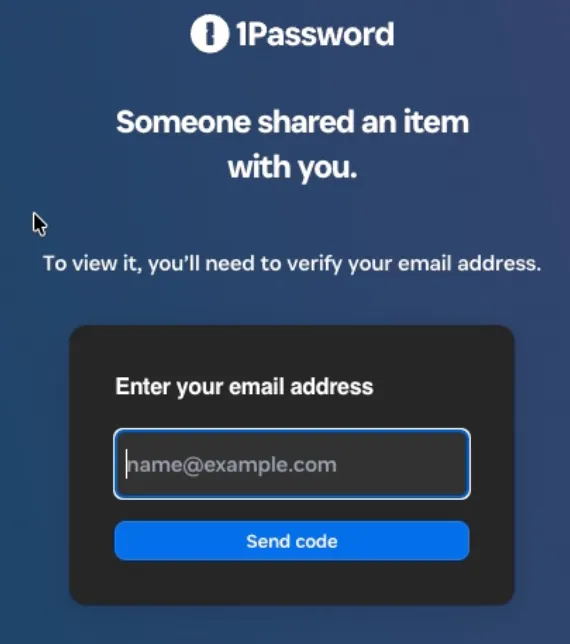
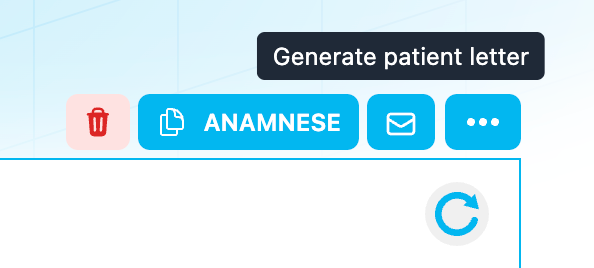
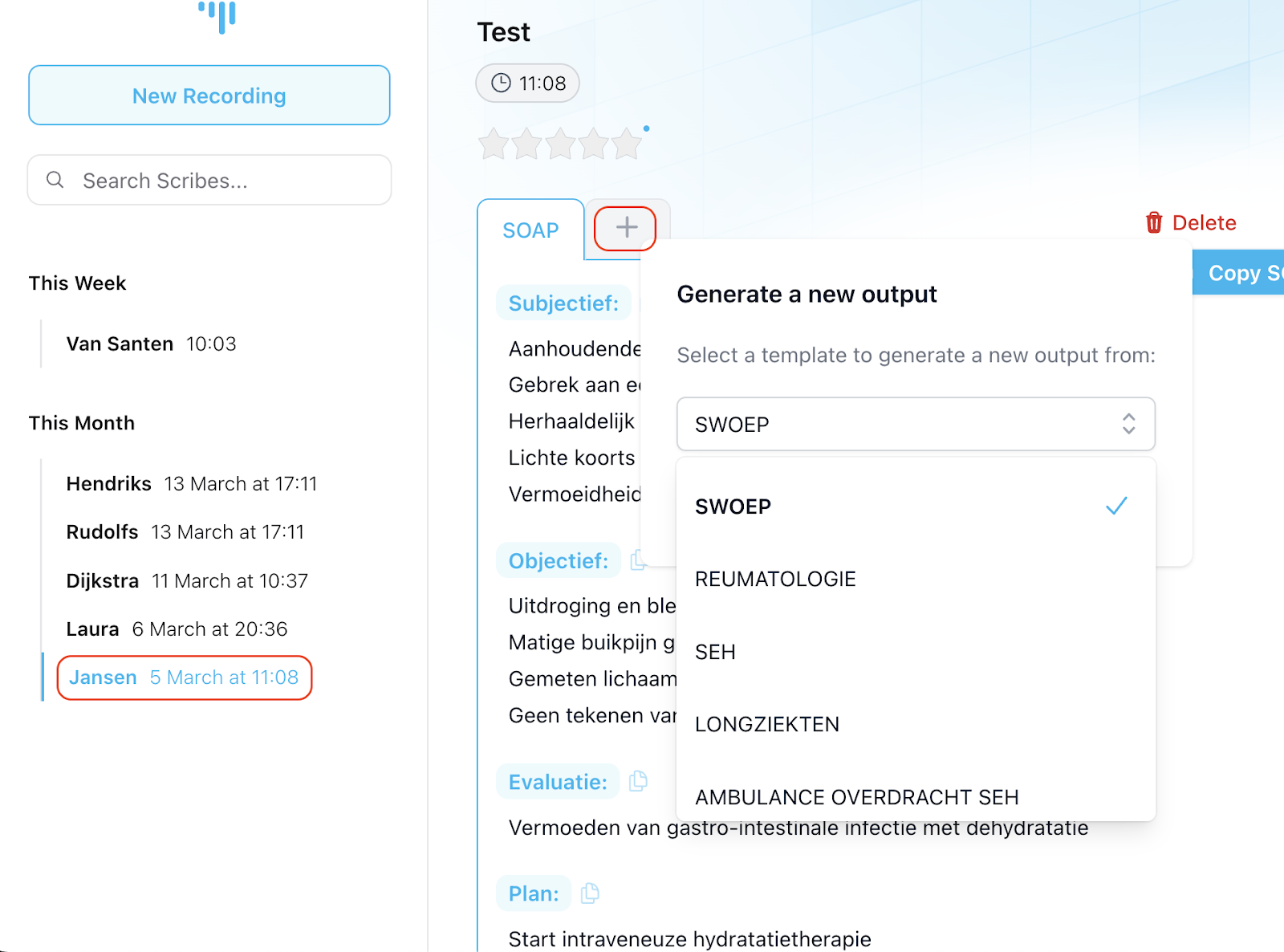
how can i generate a patient letter with autoscriber? with autoscriber, it is possible to generate not only a summary for your own specialty but also a summary for the patient based on the transcript of the consultation, autoscriber creates a summary in simplified dutch or english just like the summary for your specialty, this summary can be copied and pasted to a destination of your choice for instance, you can paste the text into a word document, print it, and hand it to the patient to generate a patient letter, follow these steps nothing has changed in the configuration for recording the consultation; you can start autoscriber and the consultation as you normally would once the recording is complete and the summary has been generated, you will find the additional option 'generate patient letter' next to the 'copy' button when you select the 'generate patient letter' option, you can choose to generate the letter in simplified english or dutch the patient letter will now be generated you can then copy the text of the letter to your clipboard and paste it to a destination of your choice how can i use autoscriber with multiple speakers (heteroanamnesis)? autoscriber is primarily designed to summarise a dialogue between healthcare provider and patient in some cases, there may also be a family member or caregiver present during the consultation because our application is not specifically equipped for this, the quality of summaries in such consultations can vary if you still wish to use autoscriber for such conversations, we recommend keeping the following points in mind instruct the speakers not to talk over each other clearly name who is participating in the conversation and what role they have when starting the recording we advise against using autoscriber in a consultation with four or more speakers, as the quality of the generated summary will often be insufficient using autoscriber when a dialect is spoken autoscriber is developed to summarise conversations where there is little to no use of dialect the heavier the use of dialect, the more it affects the quality of the summary if you notice a strong dialect but still want to use autoscriber, we recommend repeating important remarks from the patient in the spoken language can i use autoscriber during video calls? it is possible to use autoscriber during a video consultation we advise running both the video consultation and autoscriber on the same device note it is important that you have two different microphones preferably an external and an internal microphone using only one microphone will result in no summary being generated by autoscriber we recommend following the setup below as closely as possible; connect an external microphone to your laptop, pc, or tablet (preferably a headset/earbuds) start the video call on your laptop, pc, or tablet, selecting the external microphone start autoscriber on your laptop, pc, or tablet, selecting the internal microphone what is the minimum and maximum length conversations i can have using autoscriber? autoscriber is developed to summarise both check up and intake conversations there are minimum and maximum durations for autoscriber to summarise a consultation check up conversations minimum conversation length please note that for monitoring conversations, a minimum of 2 minutes of spoken dialogue is required to achieve an accurate summary if the conversation is shorter than two minutes or if there is little to no dialogue during these 2 minutes (for example, if reading is taking place), inaccuracies may arise in the summary intake conversations minimum conversation length if a conversation takes longer than 75 minutes, the chance increases that autoscriber will not be able to summarise the conversation correctly, as the amount of data to summarize is simply too large in some cases, the regenerate action can be attempted again to generate a summary if the conversation is much longer than 75 minutes, the likelihood of a successful regeneration will decrease using autoscriber when english is spoken poorly the proficiency in the english language can vary from patient to patient in most cases, however, this has no impact on the quality of the summary generated by autoscriber the reason for this is that autoscriber does not make a literal summary based on the transcript taken from the conversation the transcript will often reflect the linguistic errors/shortcomings of a patient, but because the summary is an interpretation of this transcript, the summary will be composed in complete and correct english note when the patient uses important words incorrectly (for example, saying 'fallen' instead of 'bumped'), we recommend that the healthcare provider repeats the correct word for the situation aloud incorrect words can indeed appear in the transcript and thus influence the resulting summary how do i generating a note in a language that is different from the conversation language? it is possible to use autoscriber to translate the consultation into a note in another language for example, when a consultation takes place in dutch, but you would like to leave an english note note autoscriber currently supports only a few languages for the translation function, both the spoken language and the language in which the consultation needs to be summarized must be available within autoscriber to generate a summary in a different language than the spoken consultation, proceed as follows; select the language in which the conversation takes place; select the language in which the summary should be written; how can i use autoscriber during phone conversations? it is possible to use autoscriber during a phone consultation we recommend following the setup below as much as possible; open autoscriber on your computer, laptop, or tablet conduct the consultation using your phone, set it to speaker mode with a high volume place your phone close (max 50cm away) to the device running autoscriber tip by connecting your phone to a (bluetooth) speaker, the sound quality can be improved, which can lead to an even better result in the summary via autoscriber important prevent the phone call and autoscriber from being active on the same device; as both applications give different commands to the same device, in many cases a summary cannot be generated can i also use autoscriber on my mobile? yes, that is indeed feasible autoscriber is fully compatible with mobile devices to utilize autoscriber on your android or apple device, there is no need to download an application simply open your preferred browser (we recommend chrome) and navigate to https //app autoscriber com after logging in, we advise you to conduct a microphone test if the test is successful, you are ready to begin recording conversations for which types of consultations can i use autoscriber? true unhandled content type unhandled content type unhandled content type unhandled content type unhandled content type unhandled content type unhandled content type unhandled content type unhandled content type unhandled content type unhandled content type unhandled content type unhandled content type unhandled content type unhandled content type unhandled content type unhandled content type unhandled content type heteto anamnesis for a hereditary anamnesis, autoscriber can be used in some cases importantly, there are no more than three people present at the conversation only one of the attendees is a doctor the people take turns and do not talk over each other telephone and video consultations using a headset autoscriber does not yet support telephone and video consultations using a headset we are developing support for consultations using a headset this will need to be developed for each application the first applications that will support a headset consultation will be microsoft teams i selected the wrong note template when starting my recording, what should i do? after the recording is complete, you can retroactively generate the transcript using a different note template this can be done immediately after the recording, or you can select previous recordings and generate a new note based on them previously generated templates will not be lost the new note will be added to the recording as an additional tab why can i only log in using an additional code? all autoscriber accounts come with two factor authentication (2fa) as an added layer of security for your account my microphone is visible and working in the pc settings, but not through the autoscriber website if the microphone is visible and working in the pc settings, but is not visible/usable in the browser (on the autoscriber app url) press the 3 dots at the top right of the screen go to settings in the left menu, navigate to privacy and security in the menu shown, go to website settings under the rights/permissions heading, click on microphone make sure app autoscriber com/443 has permission to use the microphone if i lose a scribe on the v1 0 autoscriber standalone app, can it be retrieved? yes in most cases, a lost scribe can be retrieved occasionally, due to temporary technical issues, a scribe may not generate a note after you stop the recording if this happens, don’t worry the content is often still recoverable below is the process to retrieve your lost scribe 🔎 how to retrieve a lost scribe if your scribe did not generate a note after you stopped recording in the v1 0 standalone app, follow these steps 1 contact support email us at https //support\@autoscriber com with the timestamp of the conversation, to make us aware that your note wasn't generated 2 access your retrieved note once we receive your email, we will then retrieve your note and add it to the original conversation entry we will notify you when copleted, so that you can access it via the left panel of the app you can then copy and paste the content into your records as needed ⚠️ important notes if you experience issues during this process, please contact https //support\@autoscriber com and include the email address used for the scribe the approximate date and time of the recording the above process is only if you use an integrated version of autoscriber if you are using the standalone app, you need to go to the faq docid\ msar8oojgr0uzv58oc8dt if i lose a scribe in a v1 0 autoscriber integration with my ehr, can it be retrieved? yes in most cases, a lost scribe can be retrieved occasionally, due to temporary technical issues (or ehr issues), a scribe may not generate a note after you stop the recording if this happens, don’t worry the content is often still recoverable below is the process to retrieve your lost scribe 🔎 how to retrieve a lost scribe if your scribe did not generate a note after you stopped recording in the ehr integrated v1 0 version of autoscriber, follow these steps 1 contact support email us at https //support\@autoscriber com with the timestamp of the conversation, to make us aware that your note wasn't generated 2 check your email you will receive an email containing a secure retrieval link if you don’t see it, check your spam or junk folder below is an example of the email you will receive 3 click the secure link clicking the link will take you to a secure 1password access page on this page, you will be prompted to enter your email address enter the same email address associated with your autoscriber account the page should look as follows 4 enter the one time pin after submitting your email address, you will receive a one time verification code via email check your inbox for the code enter the code into the 1password page this step verifies your identity and ensures secure access to your data 5 access your retrieved note once the code is successfully entered the 1password item will be displayed the content shown will be the recovered note from your lost scribe you can copy and paste the content into your records as needed ⚠️ important notes the retrieval link is secure and time sensitive the one time code is required to protect your data if you experience issues during this process, please contact https //support\@autoscriber com and include the email address used for the scribe the approximate date and time of the recording the above process is only if you use an integrated version of autoscriber if you are using the standalone app, you need to go to the faq docid\ msar8oojgr0uzv58oc8dt